Truncate all records from whole database tables with a single query using php.

Truncate all records from whole database tables with a single query using php.

<?php
$servername = "localhost";
$username = "root";
$password = "";
$dbname = "cms";

$conn = new mysqli($servername, $username, $password, $dbname);
if ($conn->connect_error) {
    die("Connection failed: " . $conn->connect_error);
}
if (!mysql_connect('localhost', 'root', '')) {
    echo 'Could not connect to mysql';
    exit;
}
$sql = "SHOW TABLES FROM $dbname";
$dbresult = mysql_query($sql);
while ($row = mysql_fetch_row($dbresult)) {
foreach($row as $r){
$sql = "truncate ".$r;
echo ' table ====>'.$r.'<br>';
$result = $conn->query($sql);

 }}
?>
Get all records From whole database tables with a single query using php.

Get all records From whole database tables with a single query using php.

<?php
$servername = "localhost";
$username = "root";
$password = "";
$dbname = "cms";

$conn = new mysqli($servername, $username, $password, $dbname);
if ($conn->connect_error) {
    die("Connection failed: " . $conn->connect_error);
}
if (!mysql_connect('localhost', 'root', '')) {
    echo 'Could not connect to mysql';
    exit;
}
$sql = "SHOW TABLES FROM $dbname";
$dbresult = mysql_query($sql);
while ($row = mysql_fetch_row($dbresult)) {
foreach($row as $r){
$sql = "SELECT * FROM ".$r;
echo ' table ====>'.$r.'<br>';
$result = $conn->query($sql);

if ($result->num_rows > 0) {
    while($row = $result->fetch_assoc()) {
print_r($row);  
echo mysql_insert_id();
}
echo '<br/><br/><br/>';
} else {
    echo "<H1>0 results</H1>";
}
 }}
?>
How To Create a SSL Certificate on Apache for Ubuntu 14.04

How To Create a SSL Certificate on Apache for Ubuntu 14.04

Introduction

TLS, or transport layer security, and its predecessor SSL, secure sockets layer, are secure protocols created in order to place normal traffic in a protected, encrypted wrapper.
These protocols allow traffic to be sent safely between remote parties without the possibility of the traffic being intercepted and read by someone in the middle. They are also instrumental in validating the identity of domains and servers throughout the internet by establishing a server as trusted and genuine by a certificate authority.
In this guide, we'll cover how to create a self-signed SSL certificate for Apache on an Ubuntu 14.04 server, which will allow you to encrypt traffic to your server. While this does not provide the benefit of third party validation of your server's identity, it fulfills the requirements of those simply wanting to transfer information securely.
Note: You may want to consider using Let's Encrypt instead of a self-signed certificate. Let's Encrypt is a new certificate authority that issues free SSL/TLS certificates that are trusted in most web browsers. Check out the tutorial to get started: How To Secure Apache with Let's Encrypt on Ubuntu 14.04

Prerequisites

Before you begin, you should have some configuration already taken care of.
We will be operating as a non-root user with sudo privileges in this guide. You can set one up by following steps 1-4 in our Ubuntu 14.04 initial server setup guide.
You are also going to need to have Apache installed. If you don't already have that up and running, you can quickly fix that by typing:
sudo apt-get update
sudo apt-get install apache2

Step One — Activate the SSL Module

SSL support actually comes standard in the Ubuntu 14.04 Apache package. We simply need to enable it to take advantage of SSL on our system.
Enable the module by typing:
sudo a2enmod ssl
After you have enabled SSL, you'll have to restart the web server for the change to be recognized:
sudo service apache2 restart
With that, our web server is now able to handle SSL if we configure it to do so.

Step Two — Create a Self-Signed SSL Certificate

Let's start off by creating a subdirectory within Apache's configuration hierarchy to place the certificate files that we will be making:
sudo mkdir /etc/apache2/ssl
Now that we have a location to place our key and certificate, we can create them both in one step by typing:
sudo openssl req -x509 -nodes -days 365 -newkey rsa:2048 -keyout /etc/apache2/ssl/apache.key -out /etc/apache2/ssl/apache.crt
Let's go over exactly what this means.
  • openssl: This is the basic command line tool provided by OpenSSL to create and manage certificates, keys, signing requests, etc.
  • req: This specifies a subcommand for X.509 certificate signing request (CSR) management. X.509 is a public key infrastructure standard that SSL adheres to for its key and certificate managment. Since we are wanting to create a new X.509 certificate, this is what we want.
  • -x509: This option specifies that we want to make a self-signed certificate file instead of generating a certificate request.
  • -nodes: This option tells OpenSSL that we do not wish to secure our key file with a passphrase. Having a password protected key file would get in the way of Apache starting automatically as we would have to enter the password every time the service restarts.
  • -days 365: This specifies that the certificate we are creating will be valid for one year.
  • -newkey rsa:2048: This option will create the certificate request and a new private key at the same time. This is necessary since we didn't create a private key in advance. The rsa:2048 tells OpenSSL to generate an RSA key that is 2048 bits long.
  • -keyout: This parameter names the output file for the private key file that is being created.
  • -out: This option names the output file for the certificate that we are generating.
When you hit "ENTER", you will be asked a number of questions.
The most important item that is requested is the line that reads "Common Name (e.g. server FQDN or YOUR name)". You should enter the domain name you want to associate with the certificate, or the server's public IP address if you do not have a domain name.
The questions portion looks something like this:
Country Name (2 letter code) [AU]:US
State or Province Name (full name) [Some-State]:New York
Locality Name (eg, city) []:New York City
Organization Name (eg, company) [Internet Widgits Pty Ltd]:Your Company
Organizational Unit Name (eg, section) []:Department of Kittens
Common Name (e.g. server FQDN or YOUR name) []:your_domain.com
Email Address []:your_email@domain.com
The key and certificate will be created and placed in your /etc/apache2/ssl directory.

Step Three — Configure Apache to Use SSL

Now that we have our certificate and key available, we can configure Apache to use these files in a virtual host file. You can learn more about how to set up Apache virtual hosts here.
Instead of basing our configuration file off of the 000-default.conf file in the sites-availablesubdirectory, we're going to base this configuration on the default-ssl.conf file that contains some default SSL configuration.
Open the file with root privileges now:
sudo nano /etc/apache2/sites-available/default-ssl.conf
With the comments removed, the file looks something like this:
<IfModule mod_ssl.c>
    <VirtualHost _default_:443>
        ServerAdmin webmaster@localhost
        DocumentRoot /var/www/html
        ErrorLog ${APACHE_LOG_DIR}/error.log
        CustomLog ${APACHE_LOG_DIR}/access.log combined
        SSLEngine on
        SSLCertificateFile /etc/ssl/certs/ssl-cert-snakeoil.pem
        SSLCertificateKeyFile /etc/ssl/private/ssl-cert-snakeoil.key
        <FilesMatch "\.(cgi|shtml|phtml|php)$">
                        SSLOptions +StdEnvVars
        </FilesMatch>
        <Directory /usr/lib/cgi-bin>
                        SSLOptions +StdEnvVars
        </Directory>
        BrowserMatch "MSIE [2-6]" \
                        nokeepalive ssl-unclean-shutdown \
                        downgrade-1.0 force-response-1.0
        BrowserMatch "MSIE [17-9]" ssl-unclean-shutdown
    </VirtualHost>
</IfModule>
This may look a bit complicated, but luckily, we don't need to worry about most of the options here.
We want to set the normal things we'd configure for a virtual host (ServerAdmin, ServerName, ServerAlias, DocumentRoot, etc.) as well as change the location where Apache looks for the SSL certificate and key.
In the end, it will look something like this. The entries in red were modified from the original file:
<IfModule mod_ssl.c>
    <VirtualHost _default_:443>
        ServerAdmin admin@example.com
        ServerName your_domain.com
        ServerAlias www.your_domain.com
        DocumentRoot /var/www/html
        ErrorLog ${APACHE_LOG_DIR}/error.log
        CustomLog ${APACHE_LOG_DIR}/access.log combined
        SSLEngine on
        SSLCertificateFile /etc/apache2/ssl/apache.crt
        SSLCertificateKeyFile /etc/apache2/ssl/apache.key
        <FilesMatch "\.(cgi|shtml|phtml|php)$">
                        SSLOptions +StdEnvVars
        </FilesMatch>
        <Directory /usr/lib/cgi-bin>
                        SSLOptions +StdEnvVars
        </Directory>
        BrowserMatch "MSIE [2-6]" \
                        nokeepalive ssl-unclean-shutdown \
                        downgrade-1.0 force-response-1.0
        BrowserMatch "MSIE [17-9]" ssl-unclean-shutdown
    </VirtualHost>
</IfModule>
Save and exit the file when you are finished.

Step Four — Activate the SSL Virtual Host

Now that we have configured our SSL-enabled virtual host, we need to enable it.
We can do this by typing:
sudo a2ensite default-ssl.conf
We then need to restart Apache to load our new virtual host file:
sudo service apache2 restart
This should enable your new virtual host, which will serve encrypted content using the SSL certificate you created.

Step Five — Test your Setup

Now that you have everything prepared, you can test your configuration by visiting your server's domain name or public IP address after specifying the https:// protocol, like this:
https://server_domain_name_or_IP
You will get a warning that your browser cannot verify the identity of your server because it has not been signed by one of the certificate authorities that it trusts.
This is expected since we have self-signed our certificate. While our certificate will not validate our server for our users because it has had no interaction with a trusted certificate authority, it will still be able to encrypt communication.
Since this is expected, you can hit the "Proceed anyway" button or whatever similar option you have in your browser.
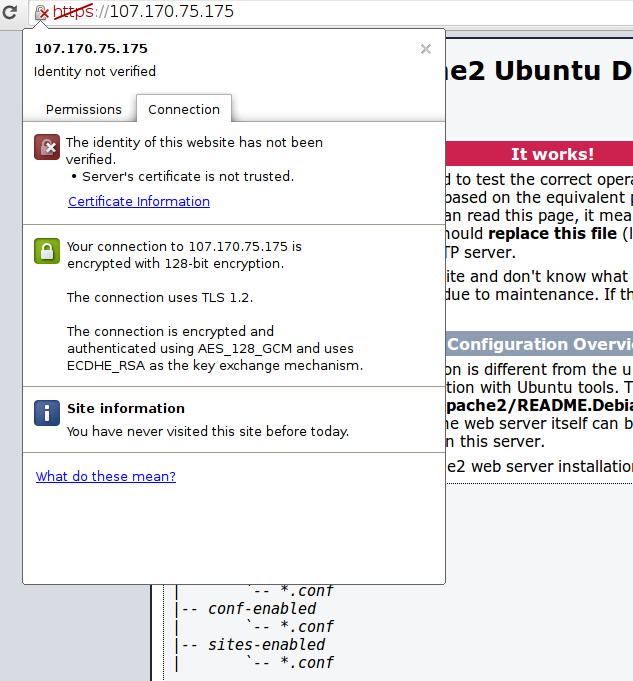
You will now be taken to content in the DocumentRoot that you configured for your SSL virtual host. This time your traffic is encrypted. You can check this by clicking on the lock icon in the menu bar:
apache ssl encrypted
You can see in the middle green section that the connection is encrypted.

Conclusion

You should now have SSL enabled on your website. This will help to secure communication between visitors and your site, but it will warn each user that the browser cannot verify the validity of the certificate.
If you are planning on launching a public site and need SSL, you will be better off purchasing an SSL certificate from a trusted certificate authority.
If you want to learn more about how to configure Apache, click here. Check out this link for more ideas on how to secure your Linux server.

Top 5 open source command shells for Linux


There are two kinds of Linux users: the cautious and the adventurous.
On one side is the user who almost reflexively tries out ever new option which hits the scene. They’ve tried handfuls of window managers, dozens of distributions, and every new desktop widget they can find.
On the other side is the user who finds something they like and sticks with it. They tend to like their distribution’s defaults. If they’re passionate about a text editor, it’s whichever one they mastered first.
As a Linux user, both on the server and the desktop, for going on fifteen years now, I am definitely more in the second category than the first. I have a tendency to use what’s presented to me, and I like the fact that this means more often than not I can find thorough documentation and examples of most any use case I can dream up. If I used something non-standard, the switch was carefully researched and often predicated by a strong pitch from someone I trust.
But that doesn’t mean I don’t like to sometimes try and see what I’m missing. So recently, after years of using the bash shell without even giving it a thought, I decided to try out four alternative shells: ksh, tcsh, zsh, and fish. All four were easy installs from my default repositories in Fedora, and they’re likely already packaged for your distribution of choice as well.
Here’s a little bit on each option and why you might choose it to be your next Linux command-line interpreter.

bash

First, let’s take a look back at the familiar. GNU Bash, the Bourne Again Shell, has been the default in pretty much every Linux distribution I’ve used through the years. Originally released in 1989, bash has grown to easily become the most used shell across the Linux world, and it is commonly found in other unix-like operating systems as well.
Bash is a perfectly respectable shell, and as you look for documentation of how to do various things across the Internet, almost invariably you’ll find instructions which assume you are using a bash shell. But bash has some shortcomings, as anyone who has ever written a bash script that’s more than a few lines can attest to. It’s not that you can’t do something, it’s that it’s not always particularly intuitive (or at least elegant) to read and write. For some examples, see this list of common bash pitfalls.
That said, bash is probably here to stay for at least the near future, with its enormous install base and legions of both casual and professional system administrators who are already attuned to its usage, and quirks. The bash project is available under a GPLv3 license.

ksh

KornShell, also known by its command invocation, ksh, is an alternative shell that grew out of Bell Labs in the 1980s, written by David Korn. While originally proprietary software, later versions were released under the Eclipse Public License.
Proponents of ksh list a number of ways in which they feel it is superior, including having a better loop syntax, cleaner exit codes from pipes, an easier way to repeat commands, and associative arrays. It's also capable of emulating many of the behaviors of vi or emacs, so if you are very partial to a text editor, it may be worth giving a try. Overall, I found it to be very similar to bash for basic input, although for advanced scripting it would surely be a different experience.

tcsh

Tcsh is a derivative of csh, the Berkely Unix C shell, and sports a very long lineage back to the early days of Unix and computing itself.
The big selling point for tcsh is its scripting language, which should look very familiar to anyone who has programmed in C. Tcsh's scripting is loved by some and hated by others. But it has other features as well, including adding arguments to aliases, and various defaults that might appeal to your preferences, including the way autocompletion with tab and history tab completion work.
You can find tcsh under a BSD license.

zsh

Zsh is another shell which has similarities to bash and ksh. Originating in the early 90s, zsh sports a number of useful features, including spelling correction, theming, namable directory shortcuts, sharing your command history across multiple terminals, and various other slight tweaks from the original Bourne shell.
The code and binaries for zsh can be distributed under an MIT-like license, though portions are under the GPL; check the actual license for details.

fish

I knew I was going to like the Friendly Interactive Shell, fish, when I visited the website and found it described tongue-in-cheek with "Finally, a command line shell for the 90s"—fish was written in 2005.
The authors of fish offer a number of reasons to make the switch, all invoking a bit of humor and poking a bit of fun at shells that don't quite live up. Features include autosuggestions ("Watch out, Netscape Navigator 4.0"), support of the "astonishing" 256 color palette of VGA, but some actually quite helpful features as well including command completion based on the man pages on your machine, clean scripting, and a web-based configuration.
Fish is licensed primarily unde the GPL version 2 but with portions under other licenses; check the repository for complete information.


So where did I land? Well, ultimately, I’m probably going back to bash, because the differences were subtle enough that someone who mostly used the command line interactively as opposed to writing advanced scripts really wouldn't benefit much from the switch, and I'm already pretty comfortable in bash.
But I’m glad I decided to come out of my shell (ha!) and try some new options. And I know there are many, many others out there. Which shells have you tried, and which one do you prefer? Let us know in the comments!

most popular open source project for 2016


Apache Spark

When it comes to open source big data processing, Hadoop is no longer the only name in the game. Apache Spark is a general purpose distributed data processing tool that allows users to process gigantic datasets across many nodes, coordinating the processing so that users can concentrate on writing their queries in their language of choice. At the beginning of this year, we announced a new world record in data processing set by Apache Spark, 100 TB of data in just 23 minutes. In the months that followed, interest in Apache Spark has not slowed, and the project has gained many new contributors and adopters.

Blender

The Blender Foundation is on a mission "to build a free and open source complete 3D creation pipeline for artists and small teams." This year we’ve seen the power of Blender in the mix of Blender-related articles we've run on Opensource.com. Writer and Blender aficionado Jason van Gumster (author of Blender for Dummies) sharedthe majority of those stories, including reports from the recent Blender Conferencein Amsterdam.

D3

When you are working with large amounts of raw data, sometimes a visualization is the best way to interpret what you’re looking at. When you make that visualization available on the web, you can add new levels of interactivity to display information for an audience in an easy-to-understand format. One tool for making this easy is D3, a JavaScript-based data visualization framework that provides options for showing data in charts, graphs, plots, maps, and more. We profiled D3 earlier this year as a part of our roundup of 8 excellent data visualization tools.

Dolphin

If you spend a lot of time managing files on your computer, you’re going to want a file manager that suit your needs and gives you features that let you quickly and easily take control of your file system. Dolphin, the default file manager in many KDE-based distributions, is a powerful tool to help you organize files. For more on Dolphin, take a look at Opensource.com community moderator David Both’s comprehensive review and guide to the Dolphin file manager from earlier this year. 

Git

The world of version control sure has changed since git entered the scene 10 years ago as an open source alternative to BitKeeper for managing the Linux kernel’s source code. Since then, git has rapidly become the most popular tool for tracking changes to files, and not just for code. Git helps track changes to files where revisioning, branching, and collaborative development can help improve the workflow of a project. Are you still working with an older source code manager, but thinking of moving to git? Here are some great tips and resources for making the move.

Mattermost

To borrow from our review of this open source team chat alternative: 
"Mattermost is [a] very modern approach to team chat. Currently in its beta release, Mattermost is written in Golang with a good chunk of JavaScript under the React framework. It features private and public chats, including one on one communication, good archival support, and a very similar interface to Slack, including most of the features you've come to expect there. In fact, if you're already using Slack, there's an easy import function which lets you move over your current channels and archives. Mattermost also integrates into your organization's existing LDAP or Active Directory authentication systems."

Piwik

Piwik is an open source alternative to Google Analytics, and according to writer Scott Nesbitt, chances are it packs the features you need.
Nesbitt writes: "Those features include metrics on the number of visitors hitting your site, data on where they come from (both on the web and geographically), from what pages they leave your site, and the ability to track search engine referrals. Piwik also has a number of reports and you can customize the dashboard to view the metrics that you want to see. To make your life easier, Piwik integrates with over 65 content management, ecommerce, and online forum systems like WordPress, Magneto, Joomla!, and vBulletin using plugins. With anything else, you just need to add a tracking code to a page on your site. A number of web hosting firms offer Piwik as part of their one-click install packages. You can test drive Piwik or use a hosted version."
Fun fact: Maker of the LulzBot 3D printer, Aleph Objects, uses Piwik to run their analytics.

R

In the era of big data, now may be the time to learn R, which has become the programming language of choice for data scientists and others interested in statistical computing and graphics, and is touted by influencers in big datalike Revolution Analytics. Earlier this year, the R Consortium became a Linux Foundation Collaborative project, created to provide support for the development of R-Hub, a new code-hosting platform for developing and distributing packages for R.

SugarCRM

SugarCRM is the 800-pound gorilla in the open source customer relationship management space, and has previously been featured as one of our top 5 CRM tools. The community edition of SugarCRM can be used out of the box as a complete solution for organizations hoping to do a better job of keeping their contacts manageable, or who want to turn a list of names into something actionable. Complete with huge list of features and a pluggable infrastructure that allows for even more customization, SugarCRM is a great solution for organizations that want to get a handle on their contacts. (Editor's note: SugarCRM 6.5 Community Edition is the most recent open source version of SugarCRM and is still widely used. Open source alternatives built on SugarCRM CE are growing in popularity.)

Vagrant

In a nutshell, Vagrant is a command-line tool for launching and configuring virtual machines. With Vagrant, environments are reproducible and portable, and the data that defines the environment is stored in text files, making it easy to version control your environments and manage your virtual machines just as you would code. Vagrant allows you to set up development environments on your local machine that are nearly identical to your production environment, regardless of what your host operating system is. Plus, learning how to get started with Vagrant is easy.

Full form for technology related words.

Full form for technology related words.

Full form of computer related terms:
* HTTP - Hyper Text Transfer Protocol.
* HTTPS - Hyper Text Transfer Protocol Secure.
* IP - Internet Protocol.
* URL - Uniform Resource Locator.
* USB - Universal Serial Bus.
* VIRUS - Vital Information Resource Under Seized.
* 3G - 3rd Generation.
* GSM - Global System for Mobile Communication.
* CDMA - Code Divison Multiple Access.
* UMTS - Universal Mobile Telecommunication
System.
* SIM - Subscriber Identity Module.
* AVI = Audio Video Interleave
* RTS = Real Time Streaming
* SIS = Symbian OS Installer File
* AMR = Adaptive Multi-Rate Codec
* JAD = Java Application Descriptor
* JAR = Java Archive
* JAD = Java Application Descriptor
* 3GPP = 3rd Generation Partnership Project
* 3GP = 3rd Generation Project
* MP3 = MPEG player lll
* MP4 = MPEG-4 video file
* AAC = Advanced Audio Coding
* GIF = Graphic InterchangeableFormat
* JPEG = Joint Photographic ExpertGroup
* BMP = Bitmap
* SWF = Shock Wave Flash
* WMV = Windows Media Video
* WMA = Windows Media Audio
* WAV = Waveform Audio
* PNG = Portable Network Graphics
* DOC = Document (Microsoft Corporation)
* PDF = Portable Document Format
* M3G = Mobile 3D Graphics
* M4A = MPEG-4 Audio File
* NTH = Nokia Theme (series 40)
* THM = Themes (Sony Ericsson)
* MMF = Synthetic Music Mobile Application File
* NRT = Nokia Ringtone
* XMF = Extensible Music File
* WBMP = Wireless Bitmap Image
* DVX = DivX Video
* HTML = Hyper Text Markup Language
* WML = Wireless Markup Language
* CD - Compact Disk.
* DVD - Digital Versatile Disk.
* CRT - Cathode Ray Tube.
* DAT - Digital Audio Tape.
* DOS - Disk Operating System.
* GUI - Graphical User Interface.
* HTTP - Hyper Text Transfer Protocol.
* IP - Internet Protocol.
* ISP - Internet Service Provider.
* TCP - Transmission Control Protocol.
* UPS - UninterruptiblePower Supply.
* HSDPA - High Speed Downlink Packet Access.
* EDGE - Enhanced Data Rate for GSM [Global
System for Mobile
Communication] Evolution.
* VHF - Very High Frequency.
* UHF - Ultra High Frequency.
* GPRS - General Packet Radio Service.
* WAP - Wireless Application Protocol.
* TCP - Transmission Control Protocol .
* ARPANET - Advanced Research Project Agency
Network.
* IBM - International Business Machines.
* HP - Hewlett Packard.
* AM/FM - Amplitude/ Frequency Modulation.
* WLAN - Wireless Local Area Network
15 Hidden Iphone tricks for you ! probably you don't know.

15 Hidden Iphone tricks for you ! probably you don't know.

You should know by now that we love every shiny product that Apple brings into the market especially the iPhone. Although iOS6 had some let downs, the aluminum body of the iPhone 5 is undoubtedly still one of the best looking smartphones you can buy, with plenty of stylish accessories to keep it looking good.

(Image Source: onedigital) However, we’re not talking about the iPhone’s looks today but rather what you can do faster on it. Here amassed are 20 (more) useful iPhone tips and tricks you might not know or heard about. You can easily learn these tricks and may even find yourself using them a lot to enhance your overall iPhone experience.
But first, here is a recap of our previously published iPhone tips/tricks compilation posts:

15 iPhone Tips

1. Save Battery Life (When It Is Running Low)

When your iPhone battery is running low, turning off the following settings can help make your iPhone last longer. With these off, you can still receive calls, SMS and even go online with EDGE connection.
  1. Settings > Wi-Fi > Off.
  2. Settings > Bluetooth > Off.
  3. Settings > Privacy > Location Services > Off.
  4. Settings > General > Cellular > Enable 3G > Off.
  5. Settings > General > Cellular > Enable LTE > Off.
  6. Settings > Sounds > Vibrate on Ring & Silent > Off.
  7. Settings > Brightness & Wallpaper > Auto-Brightness > Off.
  8. Settings > Mail, Contacts, Calendars > Fetch New Data > Off.

(Image Source: Dokisoft)

2. Stop The Music With A Timer

Do you like to listen to music when getting into bed for the night but often doze off without switching the iPhone off? You can use a timer to help you shut down the music. To do this, tap on Clock > Timer > When Timer Ends. Scroll down and tap Stop Playing. Then, set a timer (say 30 mins) and tap Start. Now you may play any music and it will be turned off after 30 mins.

3. Delete Last Digit in Calculator App

Entered a wrong digit in the Calculator app? Instead of tapping the Clear [C] button, you can just swipe your finger to the left or right of the numbers to clear the last digit. Each swipe will remove the last digit until the number becomes zero.

4. Set An Alphanumeric Passcode

Add an extra layer of protection to your iPhone with an alphanumeric passcode. To activate it, go to Settings > General > Passcode Lock. Turn off Simple Passcode and you will be prompted to enter your alphanumeric password.

5. Use Headphone Cord to Take Photo

Shaky hands not getting you good photos? Well you can trigger a snapshot using the volume up or down buttons on your headphone.

(Image Source: bestiphoneaccessoriesreview)

6. Switch Shooting Directions in Panorama

Tap the arrow in Panorama mode to switch the shooting direction so you can take a panorama picture from left to right or right to left.

7. Find Word Or Phrase within a Web page

Searching for a word or phrase in a web page? In Safari, type in the word in the search bar on the top right and tap Search. In the results page, scroll all the way down and you will see how many words were found on the web pages. Tap on the searched word/phrase and you will be directed back to the web page with the searched word/phrase highlighted in yellow.

8. Undo Typing To Delete Typed Message

Hate getting carpal tunnel on your fingers from clearing your written SMS? Try this trick. Shake your iPhone and tap Undo Typing to delete your message. Changed your mind? Shake your iPhone again and tap on Redo Typing to retrieve your original message.

9. Type Emoji with Shortcuts

If you like to use Emoji in messaging but don’t like to switch the virtual keyboards repeatedly, try this trick to type Emoji with alphabets shortcuts.
  1. Go to Settings > General > Keyboard > Keyboards > Add New Keyboard > Emoji.
  2. Go to Settings > General > Keyboard > Add New Shortcut…
  3. Insert a frequently used Emoji in Phrase.
  4. Insert a text in Shortcut which will be used to convert to Emoji.

10. Formatting Email Content

You can format your email content while writing it on your iPhone. Just highlight the text you want to format, then tap on the option arrow to look for the "BIU" button. Tap on it and select the format you want from Bold, Italics or Underline.

11. Generate Random Passwords with Siri

Yes, the voice assistant Siri can do more than what it offers in command lists, including generating random passwords for you. Just activate Siri and say “random password” and you’ll be provided an 8-alphanumeric-character password from Siri. You can even add the character length e.g. "random password 16 characters".

12. Filter Groups That Can Reach You

The ‘Do Not Disturb’ feature allows us to silence calls, alerts and notifications when the iPhone is locked. However there are important calls that we can’t afford to miss, for example, calls from Mom or your heavily pregnant wife. Here’s a tutorial to help important groups of people reach you even in ‘Do Not Disturb’ mode.

13. Turn IPhone AssistiveTouch Icon On/Off Quickly

Many iPhone users have activated AssistiveTouch to alleviate the burden from the Home button. But it could be a little annoying since it is always on top of the screen. We’ve written a quicktip to guide you on how to turn the AssistiveTouch menu icon ON and OFF easily.

14. Send Multiple Photos At Once In Messages & Mail

Don’t like to add and send photos one by one in messaging or email? Try this trick. Here’s a guide on how you can send multiple photos at one go from your iPhone with just few simple taps.

15. Hide Unused Apple App Icons

We bet there are many stock apps that you do not need or use at all. The bad news is, you’re not allowed to delete them from your iPhone. The good news is, we have a trick to hide them, without having to jailbreak your iPhone.

Bonus: Another 4 More

Extract iPhone SMS & Read It On Your Computer

This tutorial teaches you how to backup your iPhone SMS data and read it through a browser on your computer. With that, you can also easily copy and paste your SMS data on your computer.

Disable Messages Preview

Here is a simple way to prevent others (see: annoying dad, mom, sister, brother, best friend) from accidentally reading your incoming SMS alerts when your iPhone is left unattended. Go to Settings > Notifications > Messages > Show Preview. Tap the option and turn it off to exclude a preview of the message in alerts and banners.

Turn Off Read Receipts in iMessage

iMessage is a cool way to send free text, photo, and video messages to friends who are using iOS 5 and above. Read receipts allow your friends to see whether you’ve viewed their message or not. But if you don’t want your friends notified of when you have read their messages, go to Settings > Messages > Send Read Receipts > Off.